The truck is at the gate, the driver wants a signature, and you have a delivery note that says everything arrived. You need one page that records what actually came off the truck, line by line, before he drives away. That page is the goods received note. Below is a free template in Excel and PDF, what goes in each box, and how to fill it in during the ten minutes you really have.
New to GRNs? Start with what a goods receipt note is and why it matters. This page assumes you already want one and covers the format and how to use it.
Free goods received note (GRN) template
No sign-up. Blank form plus a filled-in example sheet.
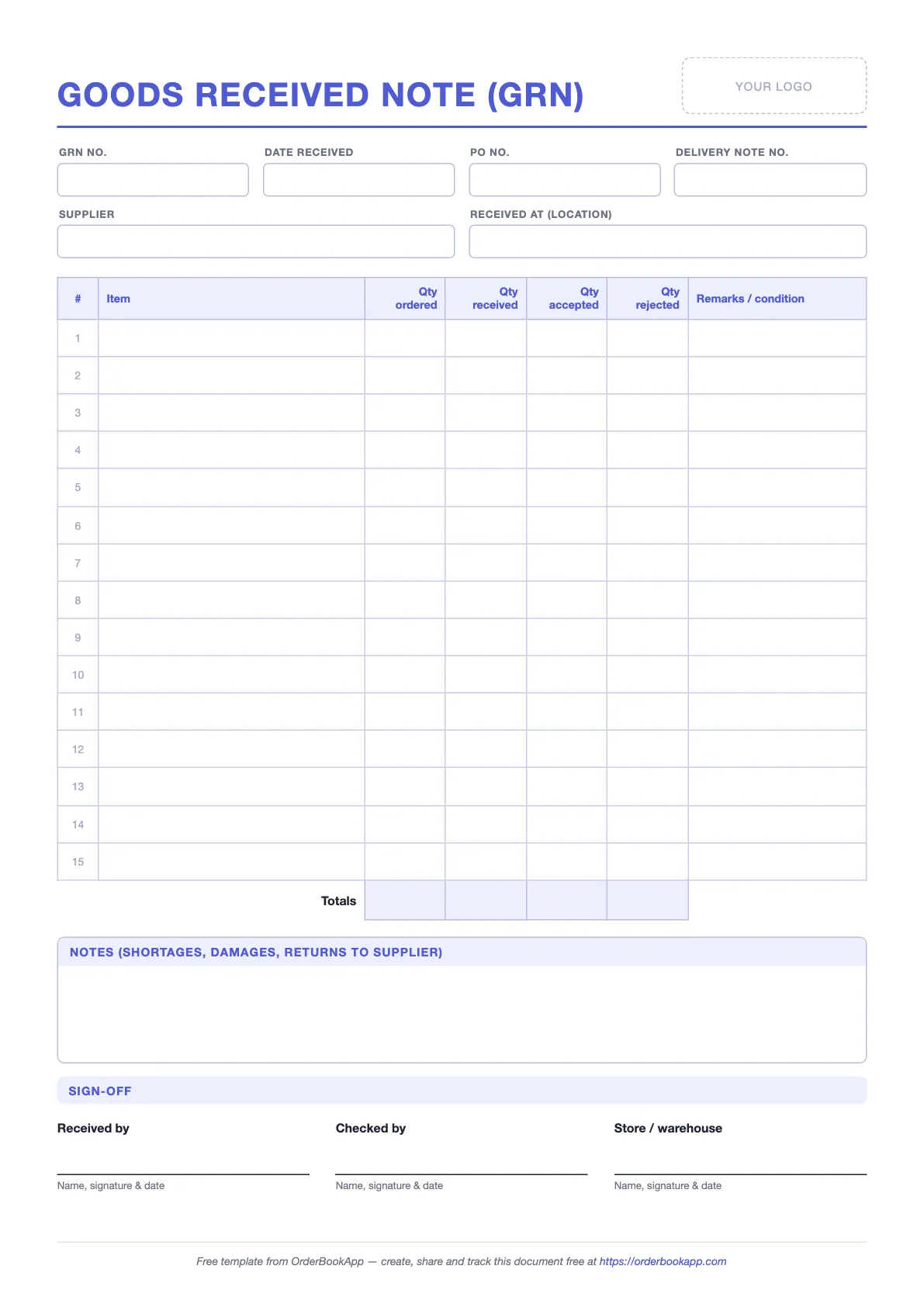
The GRN format at a glance
The template has three parts: a header that ties the receipt to an order and a delivery, a line table where the counting happens, and a sign-off. Here is every field, in the order it appears on the page.
| Field | What to write | Why it matters |
|---|---|---|
| GRN no. | Your own running number, e.g. GRN-0217. Never reuse one. | Lets you point to one receipt when the supplier or your accountant asks. |
| Date received | The day the goods arrived, not the day you got round to the paperwork. | Settles “we delivered on the 15th” arguments and starts any return window. |
| PO no. | The purchase order or LPO number this delivery is against. | Without it you cannot match the GRN to anything later. |
| Delivery note no. | The number on the supplier’s delivery note or challan that came with the goods. | It is the supplier’s reference for the same event. Their claim and your count now point at each other. |
| Supplier | The supplier’s name as it appears on your order. | Keeps receipts findable by supplier. |
| Received at (location) | Which store, site or warehouse took the goods. | With more than one site, this is how you know where the stock is. |
| Item | One line per item, in the same words as the order. | Matching is line by line. Different wording means guesswork. |
| Qty ordered | Copied from the order before the truck arrives. | The number you are checking against. |
| Qty received | What you physically counted off the truck. | Shows short deliveries straight away. |
| Qty accepted | What you are keeping because it is usable. | This is the figure you will pay for. |
| Qty rejected | Calculated in the Excel file: received minus accepted. | Damaged or wrong goods, kept apart from short ones. |
| Remarks / condition | Short, specific: “2 bags torn, returned”. | Explains every gap between the columns. |
| Totals | Added up automatically in the Excel file. | A quick sense check for big deliveries. |
| Notes | Shortages, damage, returns, who at the supplier you told. | The story behind the numbers, in one place. |
| Sign-off | Received by, checked by, store or warehouse: name, signature and date. | A named person stands behind the count. |
The Excel file numbers each line on its own as soon as you type an item, and leaves the rejected and total cells blank until there is something to calculate. If you prefer paper, print the PDF and keep a pad of them where deliveries come in.
How to fill it in at the gate
Most of the work happens before the truck arrives. The part at the gate should take minutes, not a morning.
- Prepare the form from the order. When an order is placed, start its GRN: GRN number, PO number, supplier, location, and each item with its ordered quantity. The person at the gate should only have to count and write.
- Copy the delivery note number, then put the delivery note aside. Write its number in the header. Do not copy its quantities into your received column. The whole point is that your count is independent of theirs.
- Count every line and fill in Qty received. Count what is in front of you, not what the label says. Unopened cartons are fine for a carton count. Open a sample if the contents matter.
- Check condition and fill in Qty accepted. Torn bags, cracked boxes, wrong size, close expiry dates. Anything you will not use goes back or gets a credit note, and the remarks column says which.
- Sign, note the gaps on their delivery note, and tell the supplier. Sign your GRN, then sign the driver’s delivery note with any shortage or damage written on it, and have the driver initial it. Message the supplier the same day with the GRN number and what was short or rejected.
If you genuinely cannot count before the driver leaves, write “received unchecked, subject to count” on their delivery note and finish the GRN within the hour.
Ordered vs received vs accepted vs rejected
These four columns are what make this format more useful than a single “qty” box. Here is the Example sheet from the Excel file: GRN-0217, received on 16 Sep 2026 by Summit Interiors at its Market Street site store, from Harborline Building Supply, against LPO-0388 and delivery note DN-2026-0142.
| Item | Ordered | Received | Accepted | Rejected | Remarks / condition |
|---|---|---|---|---|---|
| Portland cement, 50 kg bag | 120 | 120 | 118 | 2 | 2 bags torn — returned |
| Rebar 12 mm × 6 m | 80 | 80 | 80 | 0 | Good condition |
| Ceramic floor tile 60×60, grey | 45 | 45 | 43 | 2 | 2 boxes cracked — credit note requested |
| Tile adhesive, 25 kg | 30 | 28 | 28 | 0 | 2 bags short — back-ordered |
| Totals | 275 | 273 | 269 | 4 |
The notes box on the same sheet reads: “Supplier informed of 2 torn cement bags and 2 cracked tile boxes on the day. Balance of 2 adhesive bags due on the next delivery.”
Three different problems on one page
Look at what the columns separate. The cement all arrived, but 2 bags were torn and went back. The tiles all arrived, but 2 boxes were cracked and you want money off. The adhesive was simply short: 2 bags never came, and they are still owed.
A single “received” column would blur those together. Short goods are a delivery problem: the supplier still owes you the balance. Rejected goods are a quality problem: they arrived, and you need a replacement or a credit. The follow-up is different, so the record should be too.
The two rules the columns follow
- Rejected = received − accepted. The Excel template calculates it, so you only type three numbers per line.
- Short = ordered − received. The template does not have a column for it because it is obvious from the first two. Write it in the remarks, as the adhesive line does, so nobody has to work it out later.
One more detail. The supplier’s delivery note for this same delivery (it is the Example sheet in our delivery note template) lists all 30 bags of adhesive. Your count found 28. That is exactly why step two says to put their numbers aside and count.
Matching the GRN to the invoice
The GRN earns its keep when the invoice arrives. Put three documents side by side, the order, your GRN and the supplier’s invoice, and check each line. This is three-way matching, and with a GRN in this format it takes a few minutes.
The rule is simple: pay for the accepted quantity. Using the example above, Harborline’s invoice should bill 118 bags of cement, 80 bars of rebar, 43 boxes of tiles and 28 bags of adhesive. If it bills the full order, you have three options:
- Ask for a corrected invoice for the accepted quantities.
- Pay the invoice less a credit note for the rejected goods, once the supplier sends one.
- For the short adhesive, wait. Those 2 bags are billed when they arrive, on the next delivery and the next GRN.
Either way, write the GRN number on the invoice before it goes to whoever pays it. That way accounts can see the goods were checked, by whom, and what was kept. Tax and record-keeping rules for invoices and credit notes vary by country, so check with your accountant on how long to keep GRNs and in what form.
Common mistakes
- Copying the delivery note instead of counting. A GRN that matches the delivery note line for line on every delivery usually means nobody counted.
- One quantity column. “Received: 43” on the tile line does not tell you whether 2 boxes were short or 2 were broken. The follow-up is different.
- No PO or delivery note number. A GRN that is not tied to an order cannot be matched to an invoice, which is the main reason it exists.
- Writing it up later. A GRN filled in at the end of the day is a memory, not a count. Fill it in while the goods are still on the floor.
- Vague remarks. “Some damage” is not something a supplier can credit. “2 boxes cracked, photos taken” is.
- One GRN for several deliveries. If an order arrives in two loads, make two GRNs. Each one records one delivery on one date.
- Leaving short orders open forever. If the balance is never coming, close the order short on purpose, with a reason, so your open orders mean something.
Doing this without paper
A paper or Excel GRN works. Where it struggles is the link back to the order, and the running balance when an order comes in more than one load. In OrderBookApp the receipt is recorded against the order itself, so that link is never lost. Here is a different Harborline order, delivered in two loads.
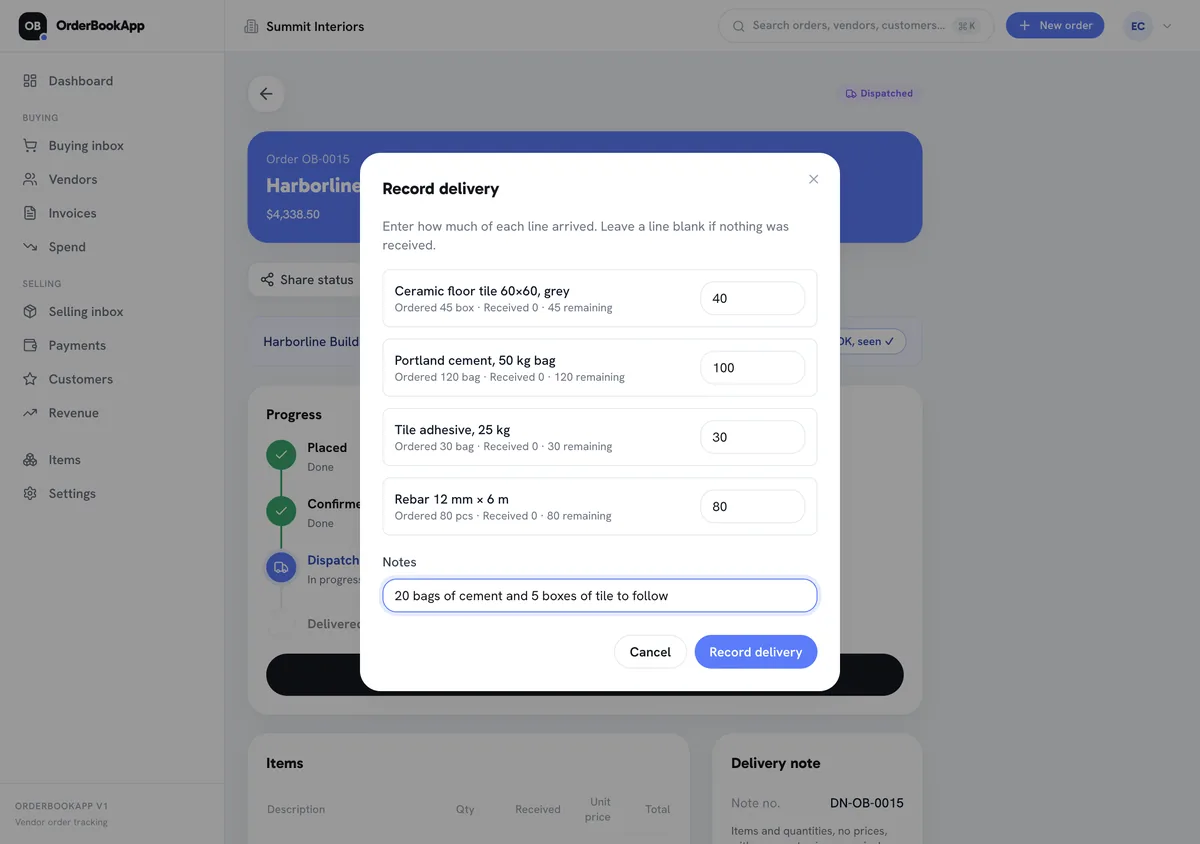
When a dispatched order arrives, you tap Record delivery and enter how much of each line came. Each line shows what was ordered, what has been received so far and what is still remaining. Here 100 of 120 bags of cement and 40 of 45 boxes of tiles arrived, and the note says the rest will follow. You cannot enter more than is outstanding on a line, so an over-count is caught before it is saved.
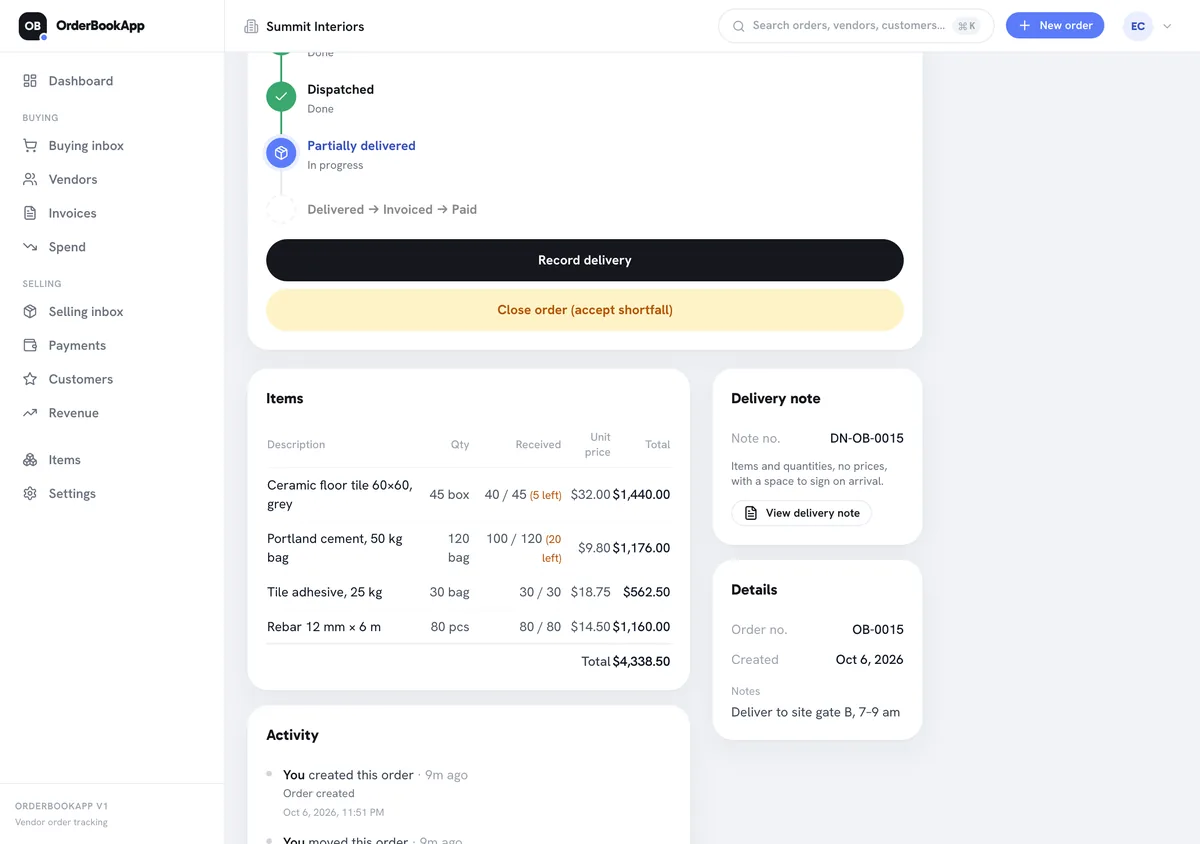
The order moves to Partially delivered and stays there until every line is fully received. The items table shows 40 / 45 and 100 / 120 with the balance left on each line. If the balance is never coming, Close order (accept shortfall) marks the order delivered with an optional reason, and the lines keep what was actually received.
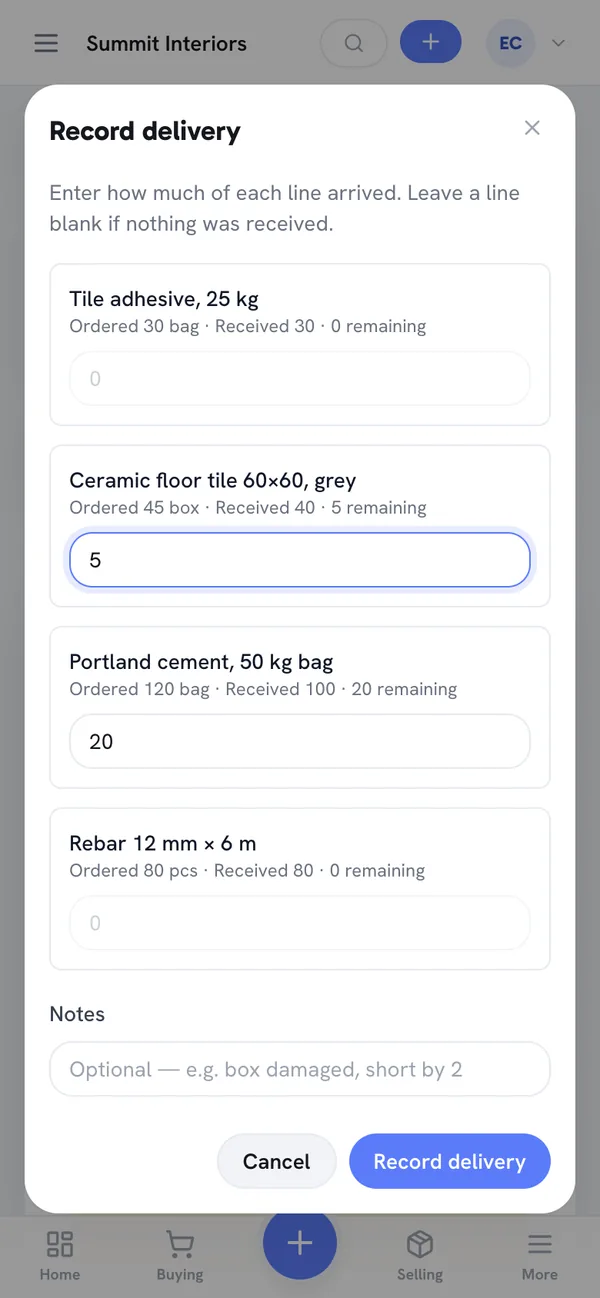
When the second load comes, the same dialog opens with the balance already worked out: 5 boxes of tiles and 20 bags of cement remaining. Lines already received in full cannot be filled in again. It works on a phone, so it can be done where the goods are.
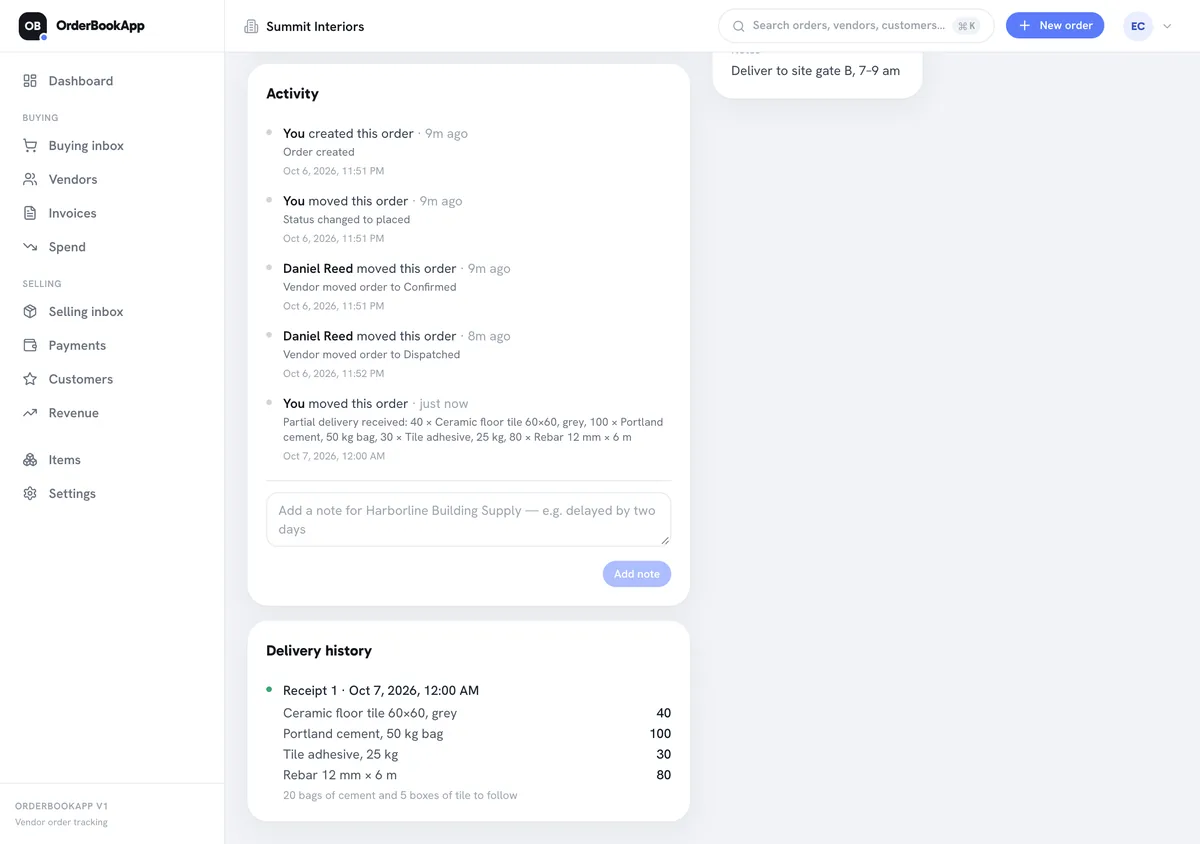
Each recorded load is kept as a numbered receipt with its date, quantities and note, which is what a GRN book would give you, minus the book. One honest gap: there are no separate accepted and rejected columns. If you send damaged goods back for replacement, enter only the units you are keeping, so the rest stays outstanding, and write what happened in the note.
Frequently asked questions
What is the difference between a GRN and a delivery note?
The supplier writes the delivery note. It travels with the goods and says what they sent. You write the GRN after counting. It says what actually arrived and what you accepted. The two should agree, and when they do not, the GRN is the one you check the invoice against. Put the delivery note number on your GRN so the two can be matched.
Who prepares the GRN?
The person who receives and counts the goods: storekeeper, site supervisor, or whoever is at the shop when the truck arrives. Someone in the office can prepare the header and ordered quantities in advance, but the received and accepted figures should come from the person who counted. For valuable deliveries, a second person signs as “checked by”.
What if the delivery is short?
Write the quantity you actually received, note the shortage in the remarks (for example “2 bags short, back-ordered”), write it on the driver’s delivery note before signing, and tell the supplier the same day. When the balance arrives, make a second GRN for that delivery. If the balance is never coming, agree that with the supplier, make sure the invoice bills only what arrived, and close the order short.
Is a GRN required for services?
Not usually in this form, because there is nothing to count at the gate. The same idea still applies: before you pay for a service, someone should sign off in writing that it was done, such as a signed job sheet, a completion note or a short email. Some businesses call that a service entry or a certificate of completion. Use this template for physical goods.